
Transferring a Project
You can move a project from one workspace to another. The project keeps its documents, but its members and access are scoped to the destination workspace going forward.
How to transfer a project
- Open the workspace that contains the project and go to its Projects list.
- From the actions menu in the project's row, select Transfer Project.
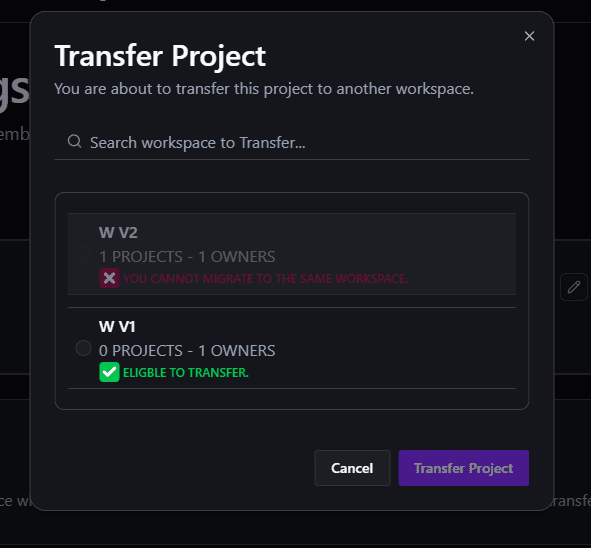
- In the dialog, search for the workspace you want to transfer the project to.
- Select a workspace where you are an owner, then click Transfer Project to confirm. Final transfer eligibility is validated when you submit.
Workspace eligibility
Each workspace in the list shows its project count, owner count, and whether it can be selected as a transfer candidate. A workspace cannot be selected if it's the same workspace the project already belongs to or if you are not an owner. Final transfer eligibility is validated when you submit and can still fail for destination email-domain admission, capacity, storage, title, collaborator, publishing, or other server-owned constraints.
What happens when you transfer
Once transferred, the project moves entirely into the destination workspace. It is no longer accessible from the original workspace. Its project members and roles carry over with it. Pending collaborators receive or reuse a destination workspace invitation before a final source invitation is removed; a shared source invitation remains while another source project still depends on it. Accepted source memberships remain intact. Every moved collaborator must satisfy the destination workspace's current email-domain admission policy unless they are already an accepted member of that destination workspace. If a moved collaborator cannot be admitted, or the transfer fails, the project and membership changes do not commit.
Who can transfer
Only the current owner of the workspace the project belongs to can transfer it out of that workspace. Holding the owner role on the project alone does not grant transfer authority. If workspace ownership is transferred, that authority moves to the new workspace owner and the previous owner does not retain it. See Workspace Permissions for the full breakdown of who can do what.