
Moving a Project to Trash
Moving a project to Trash removes it from active project lists while keeping its project record, members, documents, and attachments available for recovery. Archived project data continues to use workspace storage until the project is permanently deleted from Trash.
How to move a project to Trash
- Open the workspace that contains the project and go to its Projects list.
- Open the project action that moves the project to Trash, or open the project's Settings page.
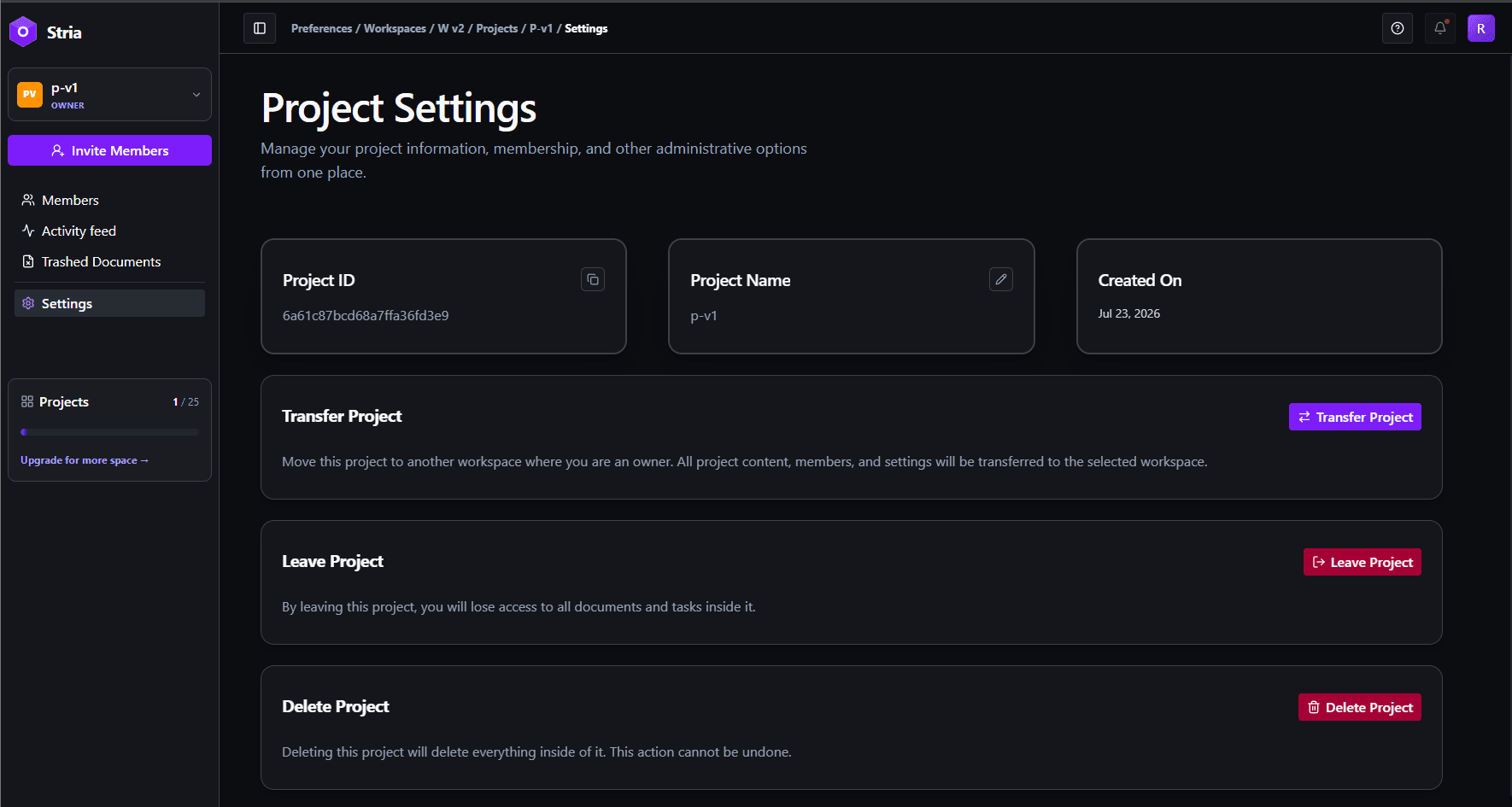
- In Settings, scroll to Move Project to Trash and click Move to Trash.
- In the confirmation dialog, type the project name exactly as shown and confirm the action.
What happens in Trash
- The project is removed from normal active project lists and cannot be opened as an active project.
- Project members, documents, and attachments remain retained.
- Retained data continues to count toward workspace storage.
- You can restore the same project from Trashed Projects in the workspace sidebar.
Permanent deletion is a separate action inside Project Trash. Permanently deleting a project removes its retained project data and cannot be undone.
Who can manage Project Trash
The workspace owner can move projects to Trash and permanently delete archived projects. Workspace roles that can create projects can restore an archived project when the workspace still has capacity. See Workspace Permissions for the full permission breakdown.