
Transferring Ownership
Transferring ownership of a workspace gives another member full control of the workspace, while your membership is changed to viewer access. This is useful when you want to hand off management of a workspace without losing access to it.
How to transfer ownership
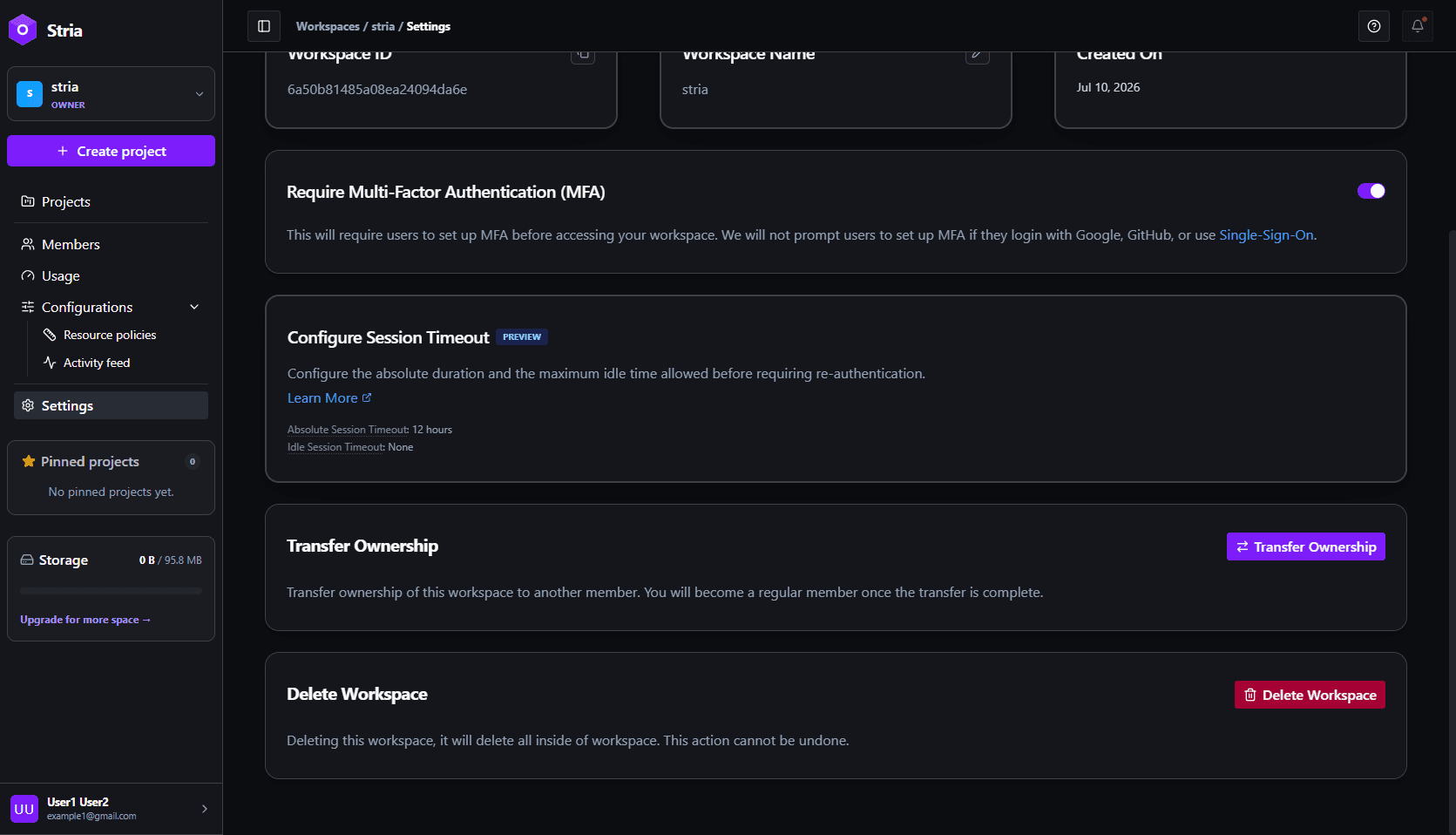
- Open the workspace you want to transfer and click Settings in the sidebar.
- In the Transfer Ownership section, click Transfer Ownership.
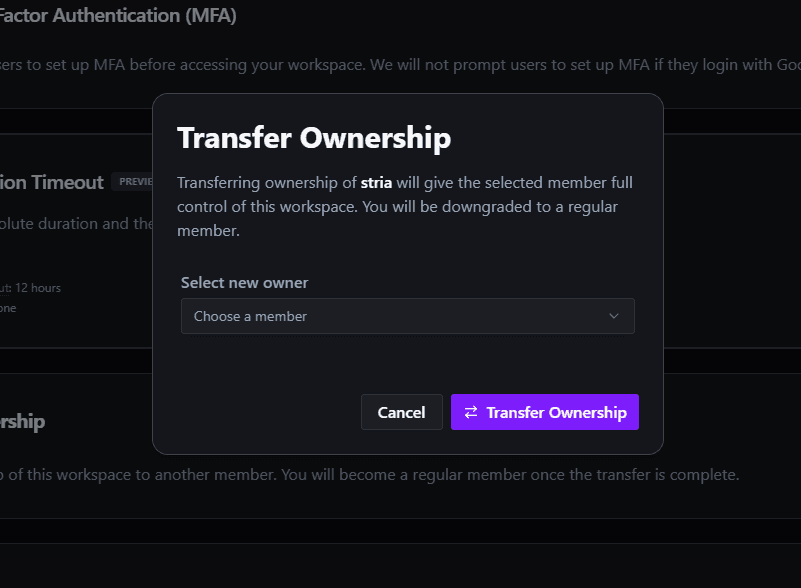
- In the confirmation dialog, use the Select new owner dropdown to choose a member.
- Click Transfer Ownership to complete the transfer.
What happens when you transfer
- The selected member becomes the new owner and gains full control of the workspace.
- You remain an accepted member with viewer access and lose owner-level permissions.
- All projects, members, and data remain unchanged, only ownership and your workspace role change.
Who can transfer
Only the workspace owner can transfer ownership. Other members, even those with full access, cannot perform this action or be granted the ability to do so, ownership can only be handed off by the current owner.